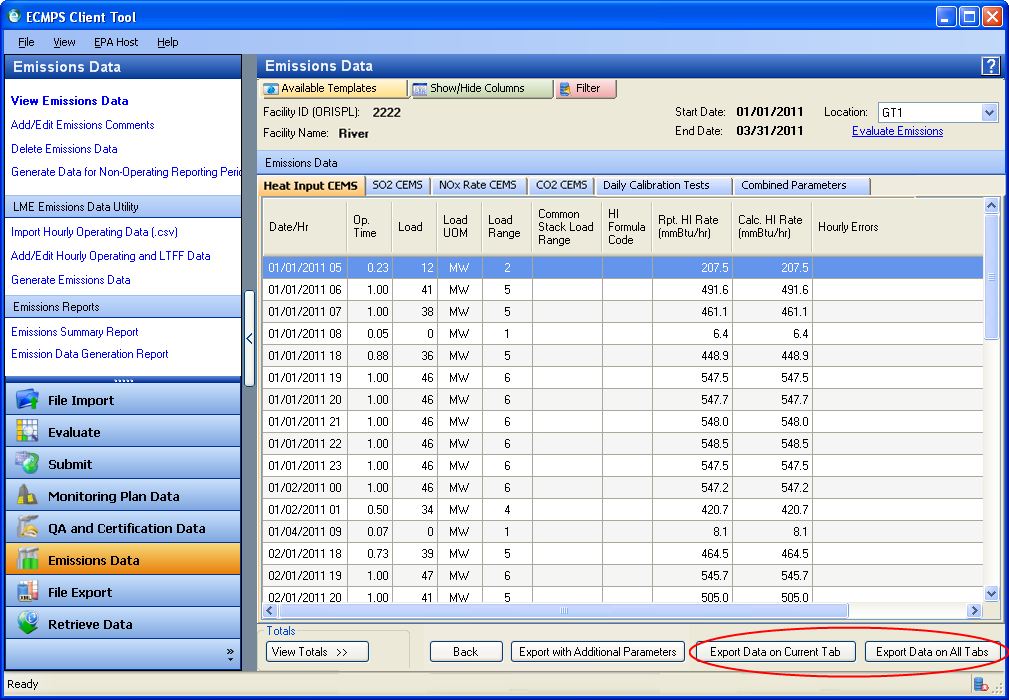
To export the emissions data displayed on a single parameter tab in the view emissions data screen of the emissions data module, click the export data on current tab button in the lower right corner of the screen (see image below). You will be prompted to choose a folder in which to save the exported file. The data will be exported in Comma Separated Value (CSV) format. This file can be opened with any software able to read comma-delimited text (e.g., Microsoft Excel).
To export all of the emissions data for a selected location and quarter, click the export data on All tabs button in the lower right corner of the screen (see image below). You will be prompted to choose a folder in which to save the exported file. An MS Excel spreadsheet will be created, and each tab on the view emissions screen will appear on a separate worksheet.
To create a custom export of emissions data, click the export with additional parameters button at the bottom of the screen. The exported data will reflect the templates, columns, and filters chosen from the view emissions screen. You will be prompted to choose a folder in which to save the exported file. The data will be exported in Comma Separated Value (CSV) format. This file can be opened with any software able to read comma-delimited text (e.g., Microsoft Excel).
To export summary emissions data, first display the summary data using the view totals check box located in the lower left corner of the screen. Click the export totals button in the lower right corner of the screen. You will be prompted to choose a folder in which to save the exported file. The data will be exported in Comma Separated Value (CSV) format. This file can be opened with any software able to read comma-delimited text (e.g., Microsoft Excel).
Note: The emissions totals represent the data that you selected to view on the View Emissions screen. For example, if you selected to view emissions data from Quarters 2 and 3, then the emissions totals are calculated using data from two quarters only. In that case, the cumulative total is not the year-to-date total. To view year-to-date values, use the Emissions Summary Report.
Tutorials: To watch various tutorials that briefly explain some of the main aspects of the ECMPS Client Tool, visit the ECMPS Support website.
Feedback: Did this help topic answer your question? Can it be improved? Click here to let us know.