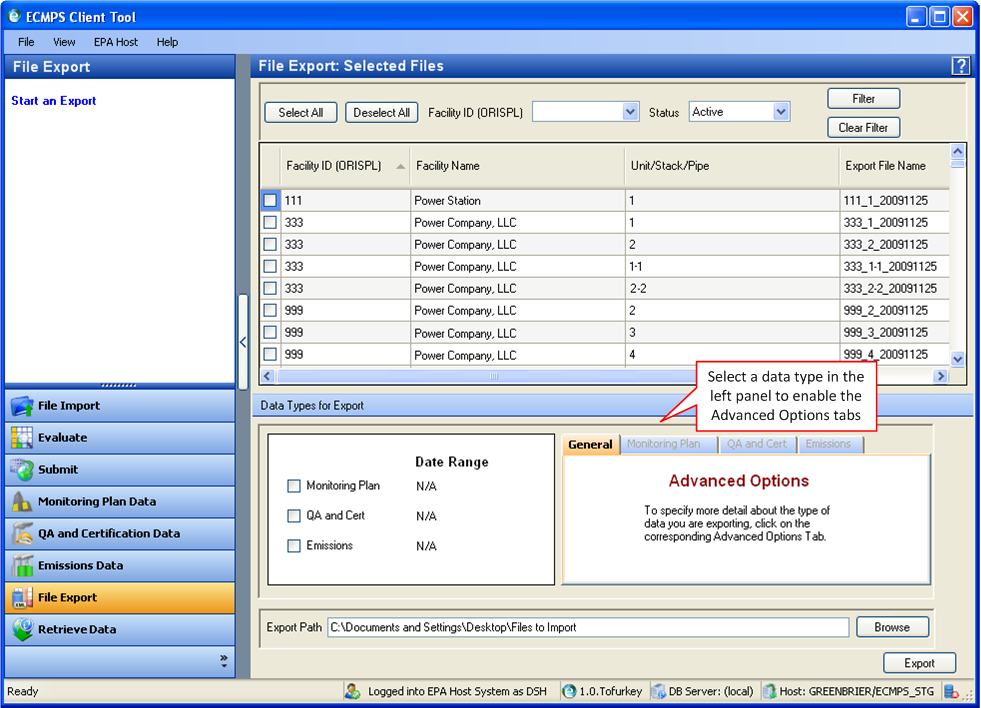
To export data from the Client Tool, click the file export module button in the Menu Panel in the lower left corner of the screen. Click the start an export link in the Module Action Panel. The file export selection screen will appear in the Working Panel.
The monitoring plan configurations available for export will be displayed in a grid. In the leftmost column of the grid, select files to export by clicking in the corresponding check boxes. By default, there are no configurations selected. In addition, you can use the select all and deselect all buttons to select and deselect files to export.
You can filter the available monitoring plan configurations by facility id (orispl) and status (Active, Future, Inactive or Becoming Inactive) using the available dropdown boxes. The status code filter defaults to Active and only active configurations will be displayed in the grid. To clear the filter and repopulate the grid with all available facilities, click the clear filter button.
Once you have selected a configuration for export, you must select the types of data to export. You can select one or all of the three types of data: monitoring plan, qa and cert, or emissions. You must select a data type to activate the tabs in the advanced options panel. Click the check box corresponding to the desired data type to select it. Once a data type is selected, the time period for which data can be exported will be displayed on the advanced options panel, which is located on the right in the bottom panel (see image below). The complete monitoring plan history will be exported if you select Monitoring Plan. For both QA/Cert Test and Emissions data, you may select data to export from a specific time period. For QA/Cert Test data, you may select types of QA tests to export by using the select type dropdown box.
The export path field at the bottom of the file export screen specifies a path to which exported file(s) are to be written. You can type a file path into the text box or click the browse button to search the directories on your computer for an appropriate location. When the files are exported, they will be generated with a file name that begins with the file name listed in the export file name column in the center grid. Appended to the name of the file will be "MP", "QA", or "EM", to designate the file type, and the current date. If you choose to export a file multiple times, an integer (beginning with "1") will be added to the file name, and will be incremented to avoid overwriting previously exported files. Exported files will be in XML format. Once you have selected an export path, click the export button.
Tutorials: To watch various tutorials that briefly explain some of the main aspects of the ECMPS Client Tool, visit the ECMPS Support website.
Feedback: Did this help topic answer your question? Can it be improved? Click here to let us know.