Once you have selected files to submit, click the SUBMIT button in the lower right corner of the screen. (Click here for information about Submit Agents.)
During the submission process, the FILE SUBMISSION QUEUE will be displayed in the top half of the screen, and a STATUS column will appear on the right side of the grid. The lower half of the screen will display details of the submission process.
You must certify your data when submitting them to ECMPS. This certification is required to meet EPA’s standards for more stringent security in electronic reporting under all its environmental regulations. For background information on the Cross-Media Electronic Reporting Rule (CROMERR), see EPA’s web page What is the CAMD Business System (CBS)?
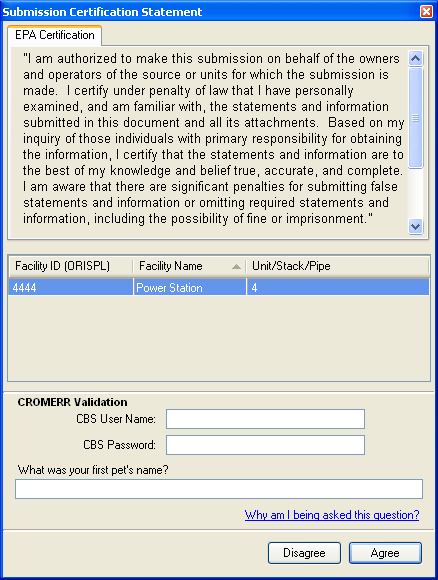
When your data are ready for submission and you click the Submit button, the Submission Certification Statement screen will appear (see image below). The facility and unit configuration for which you are submitting data will be listed. Enter your CBS User Name, CBS Password, and answer to the randomly-selected challenge question. Click the Agree button in the lower right corner of the screen.
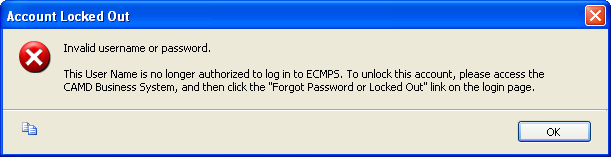
If you fail to provide the correct information after three attempts, you will receive the Account Locked Out message, notifying you that you have been locked out of the EPA Host System and are no longer authorized to log into ECMPS. To unlock your account, access the CAMD Business System and click the "Forgot Password or Locked Out?" link.
When the submission process is complete, the STATUS column will display the last stage of the submission and the details of the submission process will be displayed at the bottom of the screen. To view a submission log of the submission process click the VIEW SUBMISSION LOG link in the module action panel. The FEEDBACK REPORT can be accessed by clicking the links in the EVALUATION STATUS column of the SUBMISSION LOG. To print a SUBMISSION DETAIL/RECEIPT REPORT or a SUBMISSION SUMMARY REPORT, click the links in the Submit Reports section of the module action panel.
You will receive a confirmation email including the clear-text XML file, date and time of submission, encrypted password, encrypted challenge answer, and unencrypted challenge question ID number. This complies with the CROMERR security standards discussed above.
Tutorials: To watch various tutorials that briefly explain some of the main aspects of the ECMPS Client Tool, visit the ECMPS Support website.
Feedback: Did this help topic answer your question? Can it be improved? Click here to let us know.